This page uses javascript to help render elements, if you have problems please enable javascript.
 
You are now inside the main content area


left col

Tutorial Site

right col
 
left col

Hello! This page is a loose guideline of stylistic choices made when building this website. The goal of this page is to speed up content creation, OU4 page rebuilding, and to be used as a reference or inspiration when building additional styles. This is NOT a rule page. Feel free to add aditional style choices when significant.

Additionally, to reduce time searching for CSS text on the IT site, each section will have it's CSS displayed in red text. Like this -> blockquote-2

right col
 
left col

The following content is covered on this page.

  1. The 2 Main Page Styles
  2. Main Banner pages.
  3. Sub Banner Pages
  4. Graphic Box pages.
  5. Quicklinks
  6. HR Stock Washes
right col
 
left col
right col
 
left col

list-timeline-5

right col
 
left col


Many of the pages fit into one of two styles. 

right col
 
 
left col

Style 1: Banner Pages

These work well when we have many pages under the same umbrella.
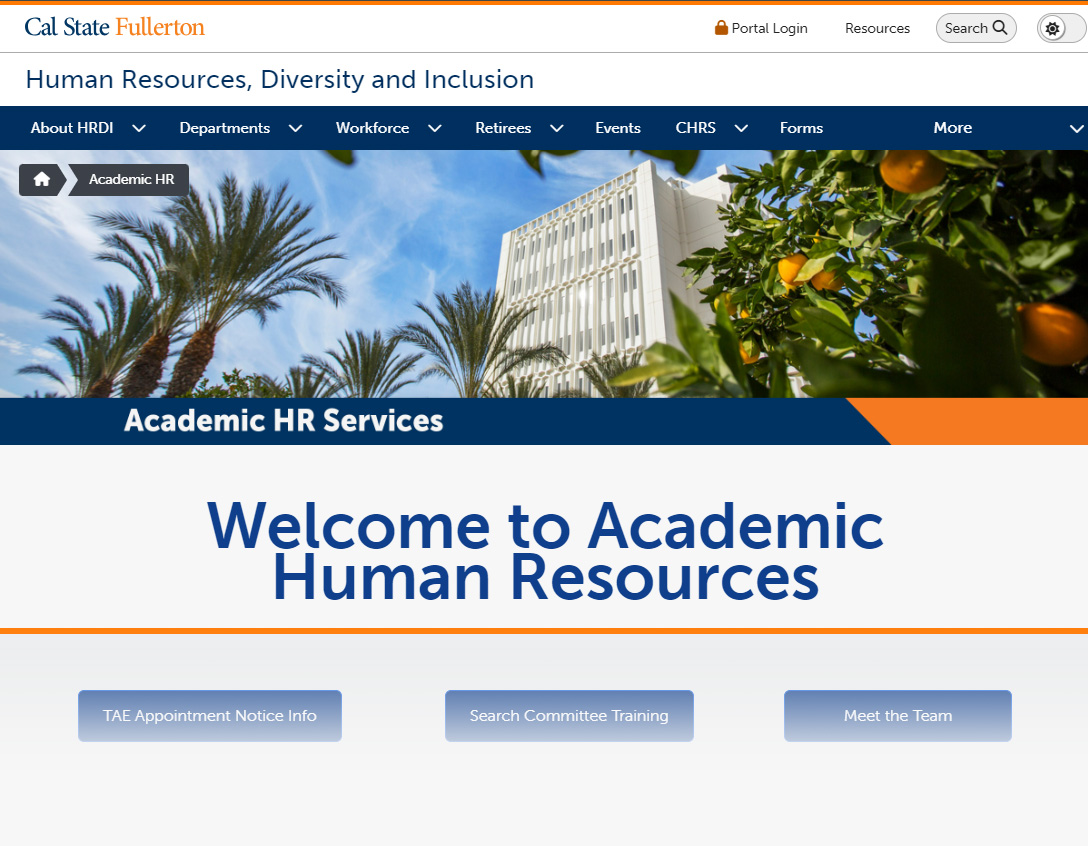
banner page example

Style 2: Graphic Box Pages

Best used for "one-off" pages.
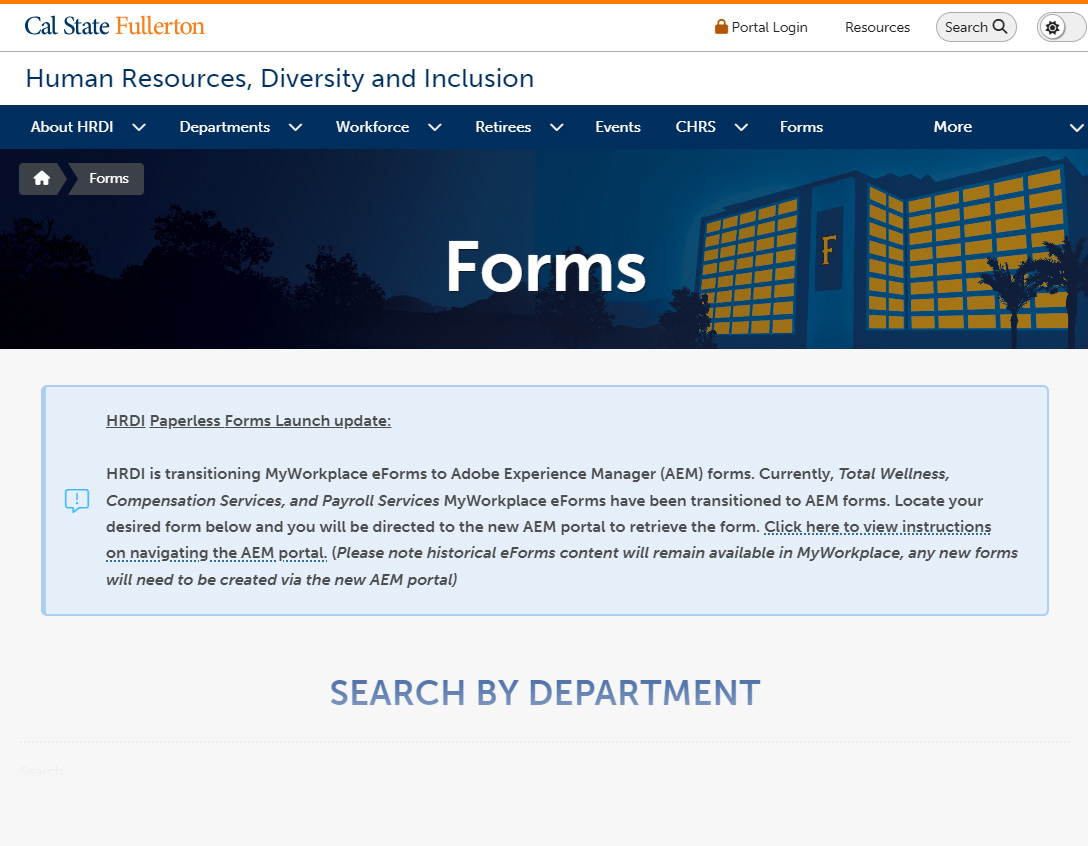
box page example

right col
 
left col

Banner pages.

As of right now, we only have the ability to host 12 banners on the site. The majority of these will be used for the department pages. Text on the banner can't be picked up by screen readers.

Banners are uploaded and edited using the slots in  "_setup > page-banners.pcf"

Note: Banners scale to page zoom. This means the entire banner image will be seen, regardless of device that is viewing it.


How do you create a banner?

Department banner images have a resolution of 2400 x 650.

Total: 2400 x 650
Stock Image: 2400 x 546
Bottom Line: 2400 x 104

right col
 
 
left col
right col
 
left col

Headings for Banner main pages.

Example

All pages need a Heading 1. Banner pages place the Heading 1 in Box 1 which appears under the banner. Bold, apply in-text styles "Large Text" or "Larger Text" if needed. Added information that is relevant to the entire department can be added under the heading. Added information can use the in-text style called "background-gray". Follow this section with an orange bottom border. It should look something like this.


right col
 
left col

Page Title

Additional context. Lorem ipsum dolor sit amet, consectetur adipiscing elit. Fusce ornare, mauris sed sollicitudin euismod, ex urna mollis massa, at venenatis risus diam dictum magna. Phasellus ultrices mi et eros commodo, sit amet faucibus erat convallis. Curabitur iaculis turpis pellentesque blandit ultricies. Quisque ac lorem volutpat, condimentum purus quis, blandit mi. Curabitur sit amet erat ac est maximus sagittis sed eu neque. 

right col
 
left col

border-5 border-thick border-bottom

right col
 
left col

Heading for Banner subpages.

Example

Pages that are linked to from the main banner page have slightly different styles. Heading 1 is unbolded, and the bottom border is thinner and blue. It should look like this


Sub Page Title

right col
 
left col

border-2 border-medium border-bottom

right col
 
left col

Graphic box pages.

Example

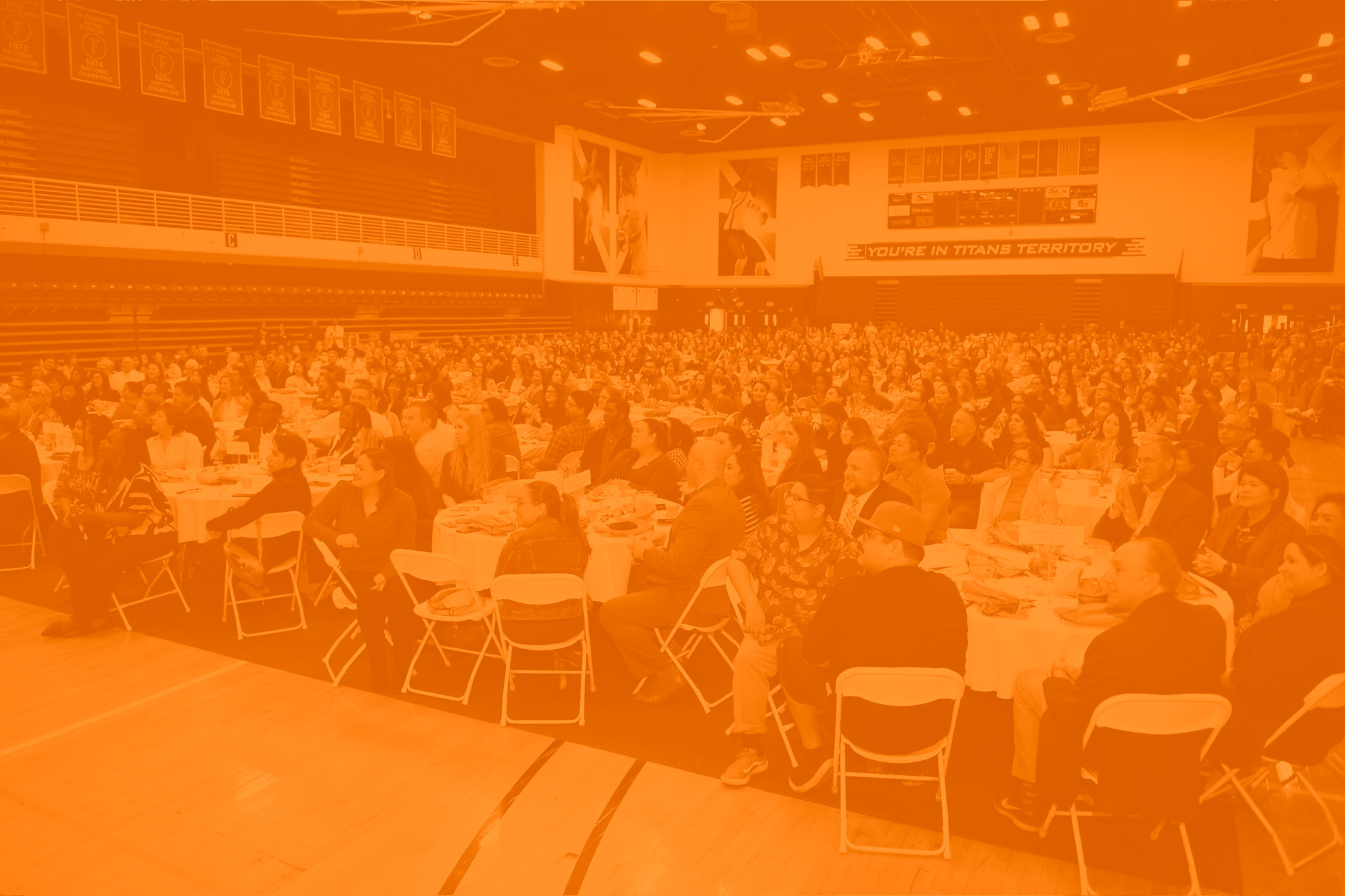
These pages use HRDI graphics in the background of Box 1 with Heading 1 in the section on top of them. I've only made one of these graphics so far, as seen below. "_resources/images/pagebanners/department-banner.jpg"

box 1 decorative image

Headings for graphic box pages.

Heading 1 usually on section 1. Bold, In-text style of "Large Text" or "Larger Text." Should look something the top of this page.

CSS used on Box 1 of this page is: quarter middle

right col
 
left col
right col
 
left col


Quicklinks

Example

right col
 
 
left col

To the right is what quick links look like right now. They should be created as "regular content" info-blocks, but currently, regular content info blocks aren't displaying content. The bulleted list of links has the in-text style called "smaller text" and "QUICK LINKS" has bottom border css. Here is the source code for the section to the right. 

<h3 class="border-5 border-thin border-bottom" style="text-align: center;"><strong>QUICK LINKS</strong></h3>
<ul>
<li class="smaller"><a href="#">Link 1</a></li>
<li class="smaller"><a href="#">Link 2</a></li>
<li class="smaller"><a href="#">Link 3</a></li>
<li class="smaller"><a href="#">Link 4</a></li>
<li class="smaller"><a href="#">Link 5</a></li>
<li class="smaller"><a href="#">Link 6</a></li>
<li class="smaller"><a href="#">Link 7</a></li>
<li class="smaller"><a href="#">Link 8</a></li>
</ul>

shadow-center background-white margin-thin

QUICK LINKS

ajax space
right col
 
left col

HR Stock Washes

I made a small collection of color washed images from our stock photos. As of 5/10/24, the only one in use in on the background of the Academic HR page. Here they are.


right col


left col

blue washed mh

blue washed langsdorf

blue wash library

gradient wash promenade

orange washed promenade

orange washed uap

right col